
Theme
How to record your website
ByteMorph can record a website for you from its link. You can also upload your own screen recordings.
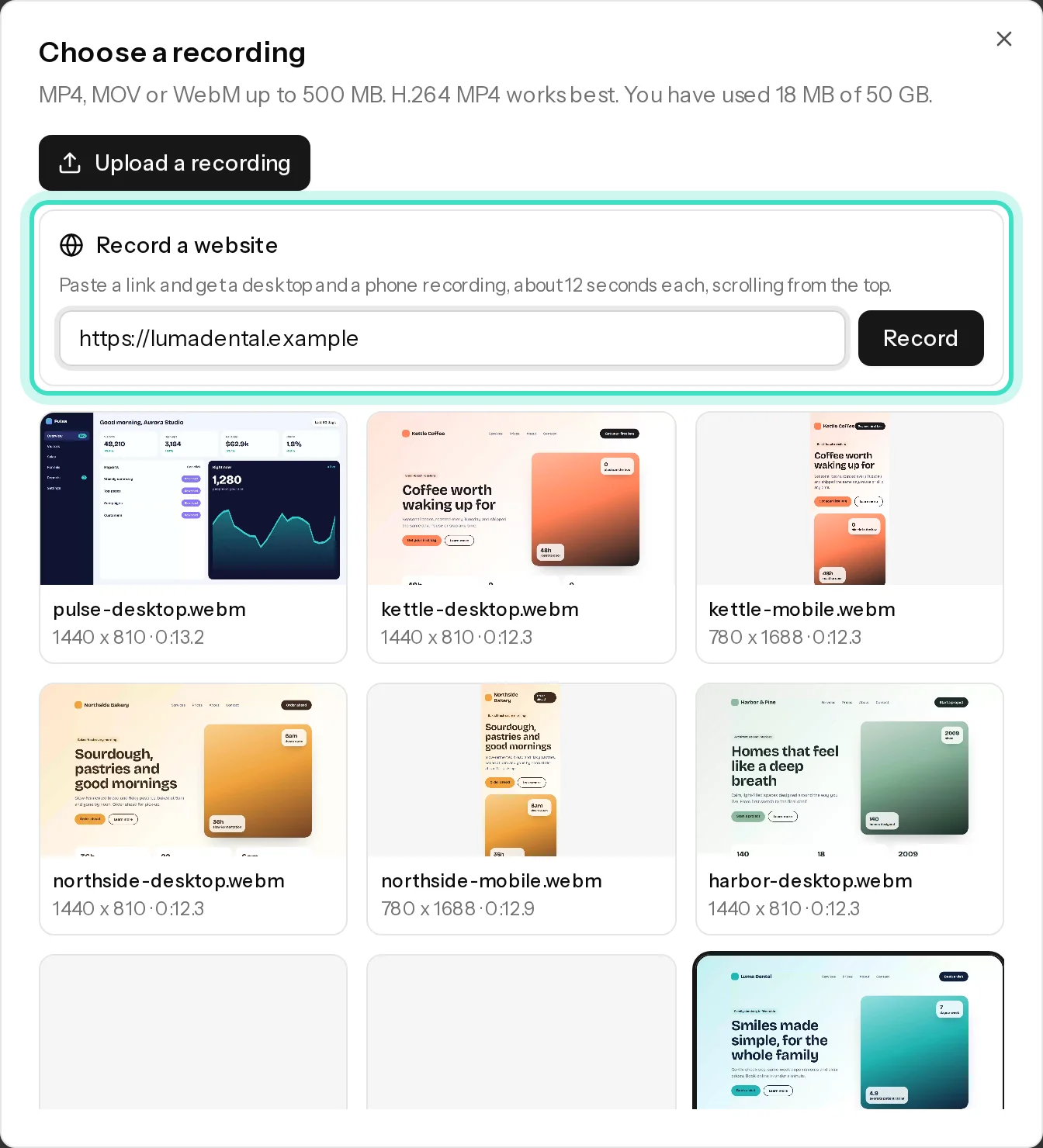
Let ByteMorph record it
- In the editor, select a device scene and click Choose a recording.
- Under Record a website, paste the address and click Record.
- Wait 2 to 3 minutes. You get a desktop recording (1440 by 900) and a phone recording (390 by 844, twice as sharp), each about 12 seconds, scrolling smoothly from the top.
The site must be public: ByteMorph can't record pages behind a login or on your own computer (like localhost). You can record up to 10 sites an hour.
Record it yourself
Upload MP4, MOV or WebM files up to 500 MB. An H.264 MP4 works best.
| Device | Free way to record |
|---|---|
| Windows | Press Win + Alt + R (Xbox Game Bar) to start and stop. Or use the Snipping Tool's record button. |
| Mac | Press Cmd + Shift + 5 and choose Record Selected Portion. |
| iPhone | Add Screen Recording to Control Centre, then tap it. |
| Android | Open Quick Settings and tap Screen record (Android 11 and later). |
| Any computer | OBS Studio is free and works everywhere. |
Recommended settings
- Desktop: a browser window around 1440 by 900, at 100% zoom, with bookmarks and extensions hidden.
- Phone: record on a real phone, or use your browser's device mode at about 390 pixels wide.
- Scroll slowly and steadily, with a short pause at the top.
- Keep each recording under a minute. You choose which part plays in each scene with Start recording at.
Tips
- Close pop-ups and cookie banners before recording.
- Record the phone version too. The morph needs a desktop and a phone recording to look its best.
- Uploads count toward your storage: 1 GB on Free, 10 GB on Pro and 50 GB on Agency.