
Theme
Exporting your reel
ByteMorph renders the MP4 right in your browser and downloads it when it is done. Nothing is uploaded.
Steps
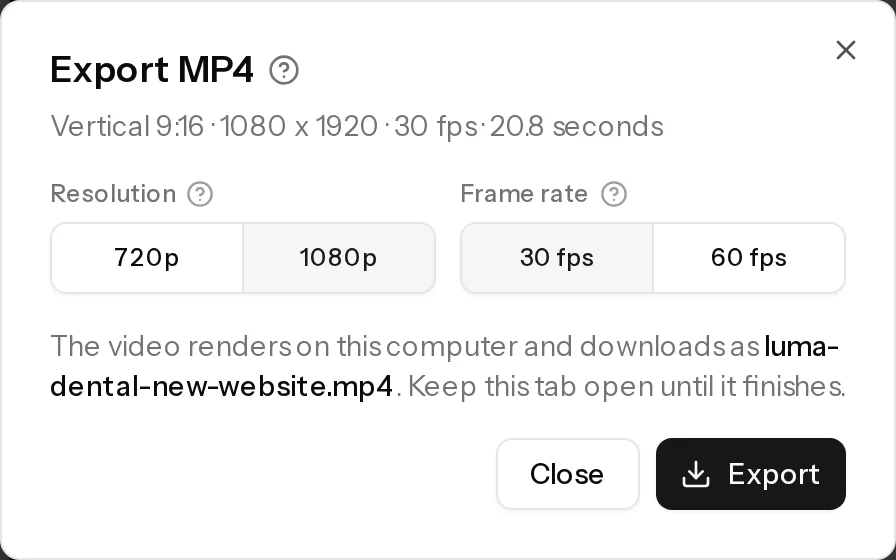
- Click Export at the top right of the editor.
- Choose the Resolution (720p or 1080p) and Frame rate (30 or 60 fps).
- Click Export. A progress bar shows the frames done and the time left.
- Keep the tab open until it finishes. The file downloads with the reel's name, like
luma-dental-new-website.mp4.
Quality and size
| Setting | Free | Pro, Agency and Lifetime Pro |
|---|---|---|
| Resolution | 720p | 720p or 1080p |
| Frame rate | 30 fps | 30 or 60 fps |
| Watermark | A small ByteMorph watermark | None |
A 20 second reel at 1080p and 30 fps is usually around 15 to 25 MB, and about half that at 720p. 60 fps files are a little bigger.
How long it takes
Rendering happens on your computer, so it depends on your computer, the reel's length, the resolution and the frame rate. 3D scenes take longer than flat ones. The window shows the time left as it goes.
Tips
- 1080p at 30 fps is the best choice for TikTok, Reels and Shorts.
- If your plan can't export something in the reel (like a second 3D scene on Free), the editor tells you what to remove, or you can upgrade.
- Exporting needs a browser that can encode video. See Supported browsers.